Showing posts with label Windows. Show all posts

Sunday, July 22, 2012

Show Hidden Files and Folder

Read Indonesian Version Here
Have you ever had an empty flashdisk or some folder/file disappear when viewed using Windows Explorer, but when use "right-clicked --> Properties" there is a space that is used. Well .. if you are experiencing the same problem, do not format the flashdisk, because chances are your data is hidden.
I try to share a little knowledge to all to deal with this problem. OK just do like this.
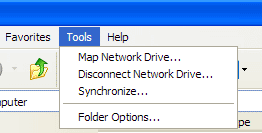
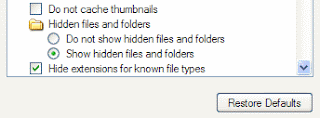
  1. Open your Windows Explore, enter to Tools --> Folder Options --> View. Then Select  Hidden files and Folders chose Show Hidden files and Folders. click OK. If this can not display the file / folder, let's do the second way.
  2. The second way is using Command Prompt. This method can be an alternative.
    • First Open Commang Prompt from run ( Window + R ) then press CMD and Enter. When the window console is out, type the name of the drive to position your flashdisk example "H:" and press Enter.
    • When you have entered on the H drive, like the picture above type attrib -r -h -s /s /d and press Enter so that it becomes as follows.
    H:\>attrib -r -h -s /s /d 
    • Wait until the H:\>_ shown, and this the simple way to show hidden file / folder.
    • Change the "-" into "+" if you want to set hide back .

***Good Luck***

Friday, May 18, 2012

Create Page Number Different Format In One File Ms. Word 2007

Read The Indonesian Version
In the past when I make a proposal regarding the final project. I was looking on the internet about how to create different page number format. The first numeral and the second decimal. Finally I found the article "Menyisipkan Format Nomor Halaman yang Berbeda dalam Satu File Word 2007" on Arihdya Caesar's Blog. Here are the steps by step that I do from the reference article
  1. Open your file that will be given page number
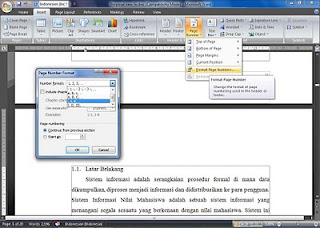
  2. Give the page with the roman numeral format on all pages "Insert->Page Number->Format Page Number", on Number Format choose the roman numeral then press OK


  3. Set Page Number depend on the Bottom of Page, actually up to you to put where depends on your taste
  4. Next specify on the number of pages will placed the decimal numbers. In this case I chose the sixth pages as the first of decimal.
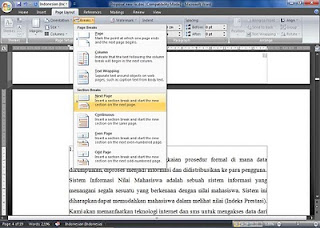
  5. Place the kursor in front of the first letter, and then choose menu Page Layout->Breaks->Next Page


  6. For the next step do do step number 2, this time change Page Number Format to number 1, 2, 3,...
  7. And see the results on the sixth Page Number Format turn into decimal number.
  8. To set the "sixth" into "first" Double klick on "4"->select Page Number Format set Page Numbering->Start at fill with "1" and see the "6" turn into "1".
**GOOD LUCK**

Thursday, May 17, 2012

Create Table of Content Using Ms. Office 2007

Read The Indonesian Version

A table of contents, is a list of the parts of a book or document organized in the order in which the parts appear. The contents usually includes the titles or descriptions of the first-level headers, such as chapter titles in longer works, and often includes second-level or section titles within the chapters as well, and occasionally even third-level titles. The depth of detail in tables of contents depends on the length of the work, with longer works having less. The table of contents usually appears after the title page, copyright notices, and, in technical journals, the abstract; and before any lists of tables or figures, the foreword, and the preface. How do We make it?. We just practice how to make a clean table of contents using Tab and Ruler
  1. Prepared Ms. Office 2007
  2. Open Ms. Word, if you first use the Ms. Word, you must enable Ruler . Located at view menu and check the Ruler
  3. Next type all the points - points that will be placed in the table of contents, such as: Title of page, Abstract, Certification Sheet, Chapter I, Chapter II, etc.


  4. Block all typed list of contents and click on the ruler right on the far right position, or whatever you like. when you already have a tab mark. double click the sign.


  5. After the Tab Form appears, Change the settings as shown below


  6. When finished click OK, and use the tab to fill the page. place the cursor at the position at the end of every sentence, press Tab on the keyboard and automatically point will be formed by itself, and so will type at page where the points are located.
**Good luck**
    Ref :
    Wikipedia

    Wednesday, May 9, 2012

    Upgrade IDMcc Add Ons for Mozila Firefox

    Read The Indonesian Version
    Latest update of Mozilla Firefox has many additional features, but this update makes some addons not support. For example, Internet Download Manager (IDM CC) is an extension that allows the IDM to auto capture streaming video when the play button is clicked or audio streaming when the play button is clicked. To re-enable this feature on the new version of mozilla firefox. IDM CC is needed upgrade to the latest version. At least that's what I did after reading the article in Largest Indonesian Community (Kaskus), so my Internet Download Manager is running normally again.
    1. To upgrade click the following link idmmzcc.xpi to download the "xpi" file
    2. To install, start firefox and open the “xpi” file: File>Open File
    3. After that follow the process as we're installing on Mozilla Firefox Add Ons.
    ** I Hope This Article Useful **